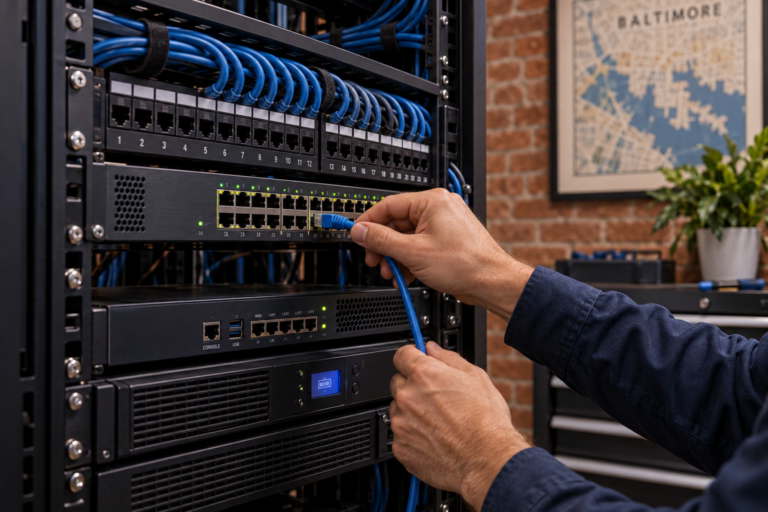

Computer data migration in Baltimore, MD, helps you move important information to a replacement computer without overlooking the files and settings you rely on. SyncTek Solutions assists small businesses, home offices, and residential customers with practical data transfer planning and support. Whether you are replacing an aging laptop or setting up a new workstation, a careful migration makes the transition more organized and easier to verify.
Computer Data Migration in Baltimore, MD
Data migration means moving information from one computer or storage location to another. That can include documents, photos, project folders, and other user files. Depending on the systems involved, the transition may also require attention to email archives, browser information, cloud synchronization, and application-specific data.
Moving files is not the same as moving every installed program. Many applications need to be installed again and activated with a valid license or account. Compatibility also matters, particularly when switching between Windows and macOS or replacing older software.
Who Benefits From Professional Migration Support?
A planned migration is useful whenever losing track of information would disrupt work or personal activities. Common situations include:
- Replacing an older business desktop or home computer.
- Moving from a laptop to a new primary workstation.
- Transferring documents and photos to a newer device.
- Changing between Windows and Mac computers.
- Organizing files scattered across multiple storage locations.
- Preparing a replacement computer for an employee.
- Moving information from a computer that still works but has become unreliable.
If the original computer has failed or files are already missing, recovery may need to come before migration. Continuing to use a potentially failing storage device can make matters worse, so describe those symptoms when requesting assistance.
What a Migration Plan Should Cover
Identify the information that matters
The first step is deciding what needs to move and where it currently lives. Desktop folders and documents are easy to recognize, but important information may also be stored in downloads, local email archives, or specialized application folders. Cloud-based files require attention because some items may be available online without a complete local copy.
Review the destination computer
The replacement computer needs sufficient storage and compatible software. Account access, operating system differences, and the intended folder structure should be considered before transferring files. For business users, permissions should match the employee’s role rather than simply copying every previous access setting.
Protect the source information
A usable backup provides a safety measure before significant changes. The migration method should reflect the condition of the old computer and the sensitivity of its contents. Avoid erasing or disposing of the source device before the transfer has been checked and any remaining retention needs have been addressed.
Transfer and verify
Verification is more than confirming that folders appear on the new computer. It can include checking representative documents, reviewing folder contents, and testing access through the appropriate applications. The scope should identify the important locations and tasks to check rather than assuming every possible file has been captured automatically.
Make the New Computer Useful, Not Just Full of Files
A successful transition should help you get back to normal work. Related new computer setup and software installation support can address applications, printers, email, and essential settings. Microsoft 365 assistance may be relevant when business email or OneDrive for Business is part of the move.
Cloud synchronization deserves particular care. Signing in may make files appear on the new computer, but synchronization does not necessarily transfer every local folder or application setting. It can also spread changes or deletions between devices. Understanding what is synchronized helps avoid confusion during the transition.
After migration, backup planning remains important. The old computer should not become the only fallback for information now being created on the new one. SyncTek Solutions can help evaluate an appropriate ongoing backup approach.
Why Choose SyncTek Solutions?
SyncTek Solutions offers Baltimore-area customers personalized support and straightforward recommendations. The emphasis is on moving the information you need, understanding limitations, and reducing avoidable disruption rather than promising an identical copy of every computer environment.
Timing and scope depend on data volume, device condition, transfer methods, and software requirements. Ask for an assessment and consult current pricing information before scheduling work. Business customers can also discuss how migration fits into longer-term computer replacement planning and ongoing support.
FAQs
Can you move everything from my old computer?
The transferable information depends on the source, destination, and software involved. Files are often transferable, but programs, licenses, saved credentials, and some settings may require separate steps or may not carry over.
Can you help move files from Windows to a Mac?
Cross-platform migration can be assessed based on your files and applications. Common documents may work with compatible software, while specialized formats and Windows-only programs need additional planning.
When can I erase the old computer?
Wait until important information has been verified, required applications work, and a suitable backup is in place. Also consider any business record-retention requirements before removing the original data.
Plan Your Computer Move
Contact SyncTek Solutions at 410-368-0084 or support@syncteksolutions.com. Share the types of computers involved, their condition, and what you need transferred. Standard phone and email support is available Monday through Friday, 9:00 AM to 6:00 PM Eastern Time, with best-effort after-hours assistance.